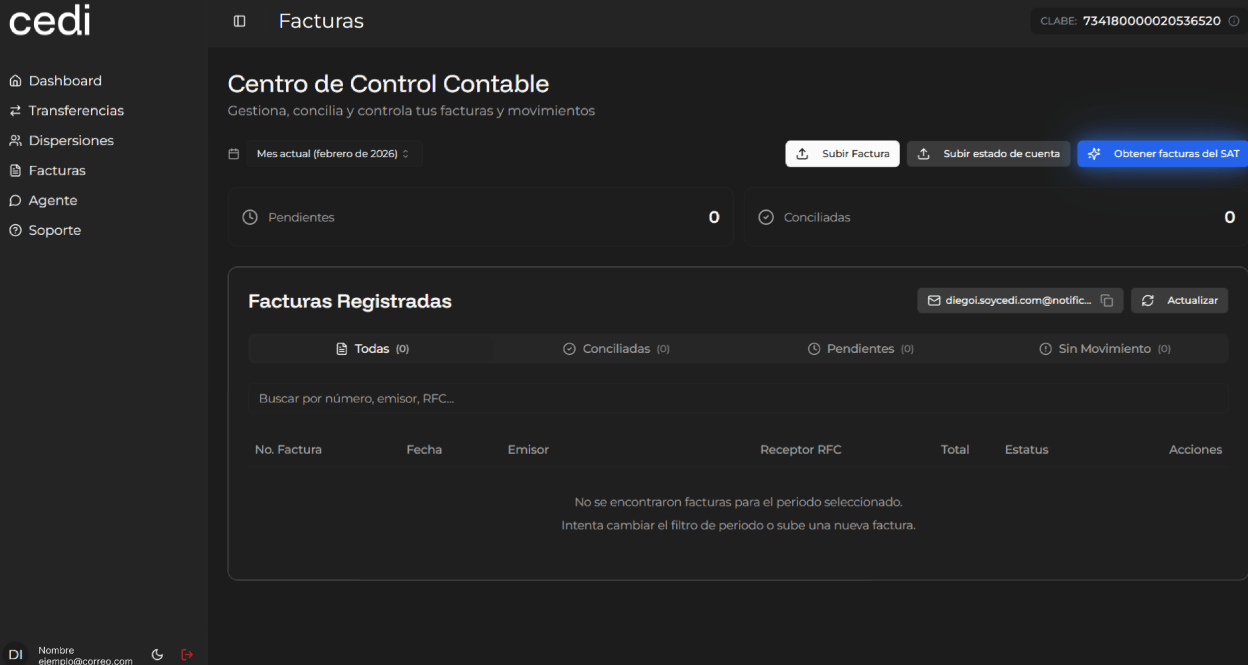
You access the “Invoices” module from the system. Upon entering, the system displays the main screen called “Accounting Control Center”, where a general summary of the status of the registered invoices is presented. In this section, the system shows key indicators that allow you to quickly view the current situation of your documents, including:
  • Pending invoices
  • Reconciled invoices
In this way, you can easily identify the number of invoices that require attention and those that have already been properly reconciled.
The system also presents the “Registered Invoices” section, where the complete list of available documents is displayed. In this section, you can apply filters to organize the information according to your needs. Invoices can be filtered by the following criteria:
  • All
  • Reconciled
  • Pending
  • No movement
Additionally, the system allows you to perform specific searches by entering any of the following data:
  • Invoice number
  • Issuer
  • RFC
Once the filters or search criteria have been applied, the system displays the results that match the requested information. The system presents different action buttons that allow you to manage invoices efficiently. These actions include:
  • Upload invoice
  • Upload bank statement
  • Obtain invoices from the SAT
You can select the option you wish to use according to the operation you need to perform.

title

Upload invoice

To register a new invoice in the system, you must select the “Upload invoice” option. The system allows uploading an invoice file in PDF format. Once the file has been uploaded, the system automatically validates its content to verify that it meets the established requirements. If the validation is successful, the system registers the invoice and adds it to the list of registered invoices, allowing its consultation and subsequent management.

Upload bank statement

If you wish to register a bank statement, you must select the “Upload bank statement” option. The system allows uploading a file in PDF format, which will be processed to validate the contained information. Once the file has been validated, the system registers the bank statement within the system, allowing its integration with the rest of the financial information.

Obtain invoices from the SAT

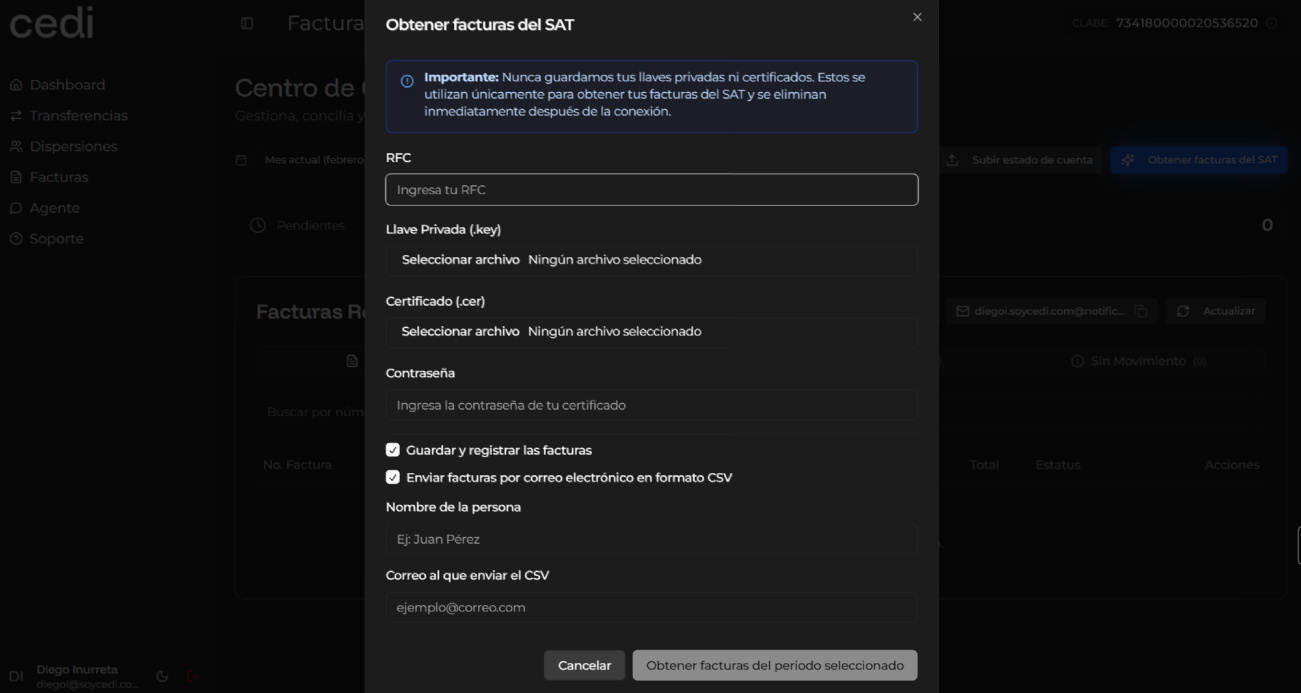
To obtain invoices directly from the Tax Administration Service (SAT), you must select the “Obtain invoices from the SAT” option. The system displays a form where the necessary data is requested to establish a secure connection with the SAT platform. The required data includes:
  • RFC
  • Private key (.key)
  • Certificate (.cer)
  • Certificate password
The system informs that the provided files and credentials are used only to obtain the corresponding invoices and that they are automatically deleted at the end of the process, guaranteeing the security of the information. You can select the following additional options according to your needs:
  • Save and register the invoices in the system
  • Send invoices by email in CSV format
If you activate the email sending option, the system will request the following information:
  • Recipient name
  • Email address
Once the data has been completed, you must select the “Obtain invoices” option corresponding to the desired period. The system connects to the SAT, downloads the invoices corresponding to the indicated period, and automatically registers them within the system. Finally, the system displays a confirmation message indicating that the invoices were successfully obtained and updates the list of registered invoices, allowing you to view the new invoices within the platform. title