> ## Documentation Index
> Fetch the complete documentation index at: https://docs.soycedi.com/llms.txt
> Use this file to discover all available pages before exploring further.
# Invoice Creation and Stamping
To issue tax receipts within the **"Invoices"** module, you must select the **"Create invoice"** option located in the top right corner of the Accounting Control Center.
The system will initiate the creation flow or request the prior setup of tax stamping if it has not been activated previously.
##  ### SAT Stamping Activation
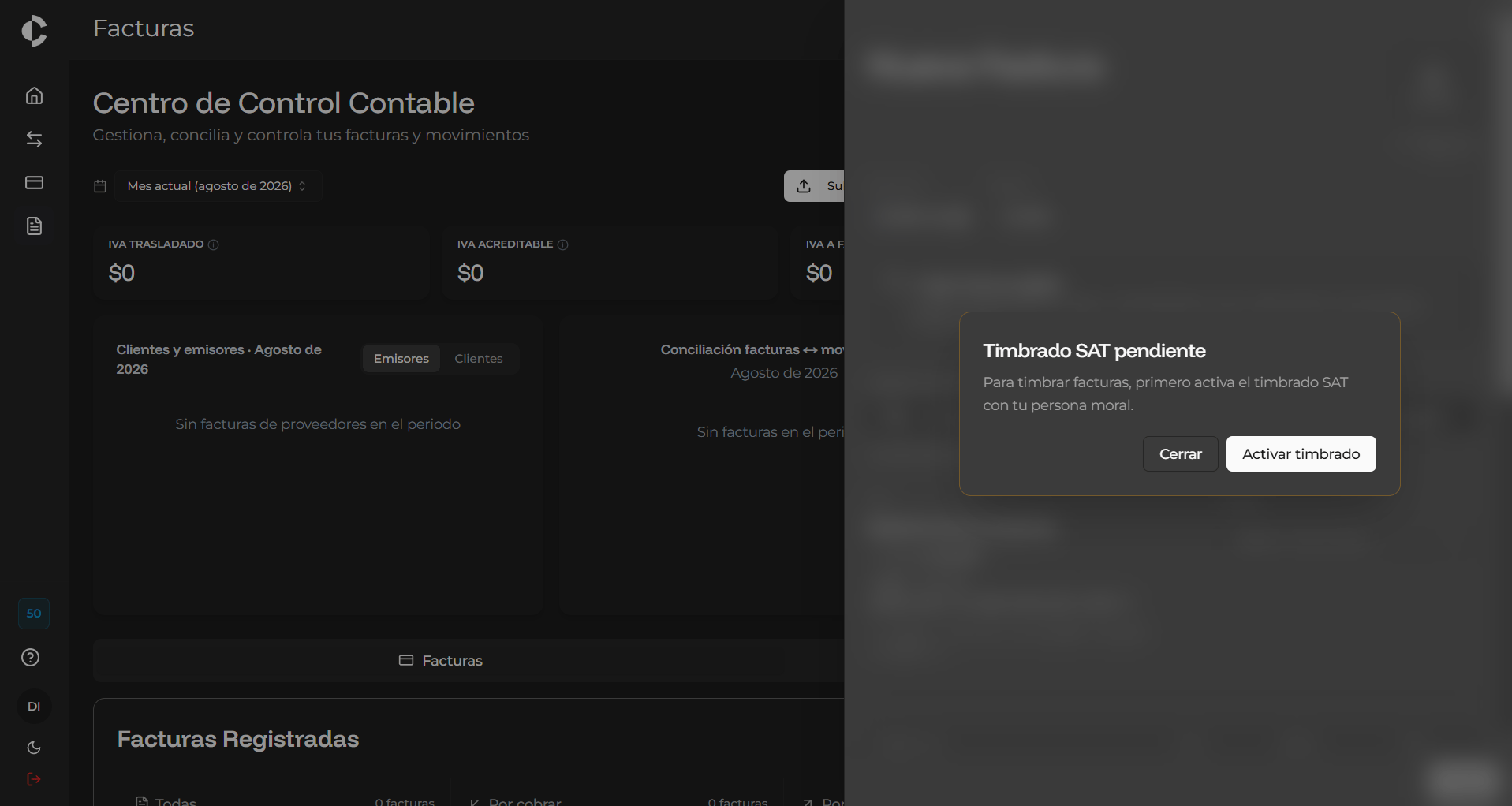
If this is the first time you are generating a receipt or if your account has not completed tax registration, the system will display the **"SAT Stamping pending"** notification. Selecting the **"Activate stamping"** option will open a window where you must complete four stages:
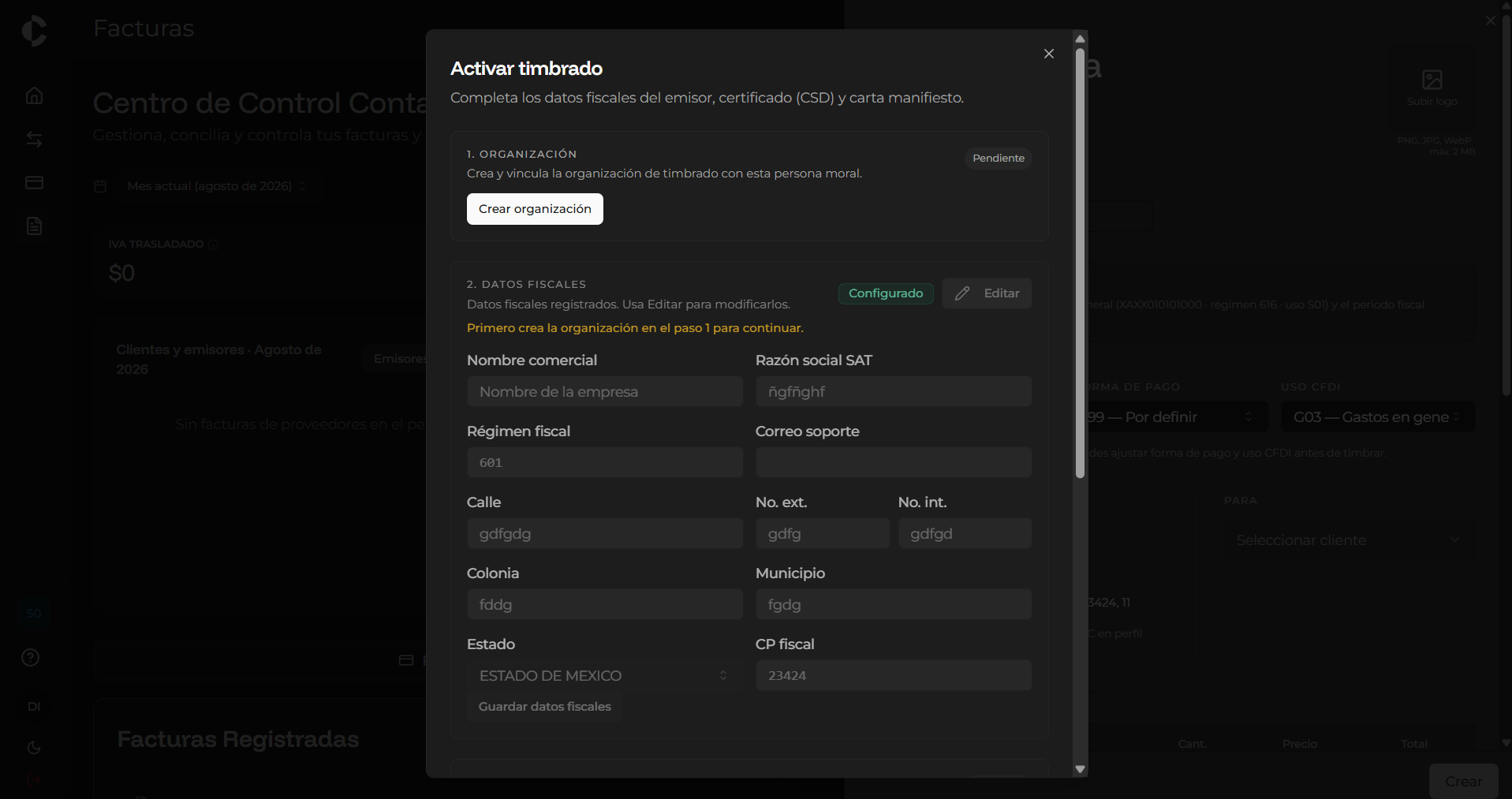
1. **Organization**: Create and link the stamping organization with the registered legal entity using the **"Create organization"** button.
2. **Tax Details**: Enter or edit the issuer's tax information:
* Commercial name and SAT Business name.
* Tax regime and support email.
* Full address (Street, Ext. No., Int. No., Neighborhood/Colonia, Municipality, State, and Tax ZIP Code).
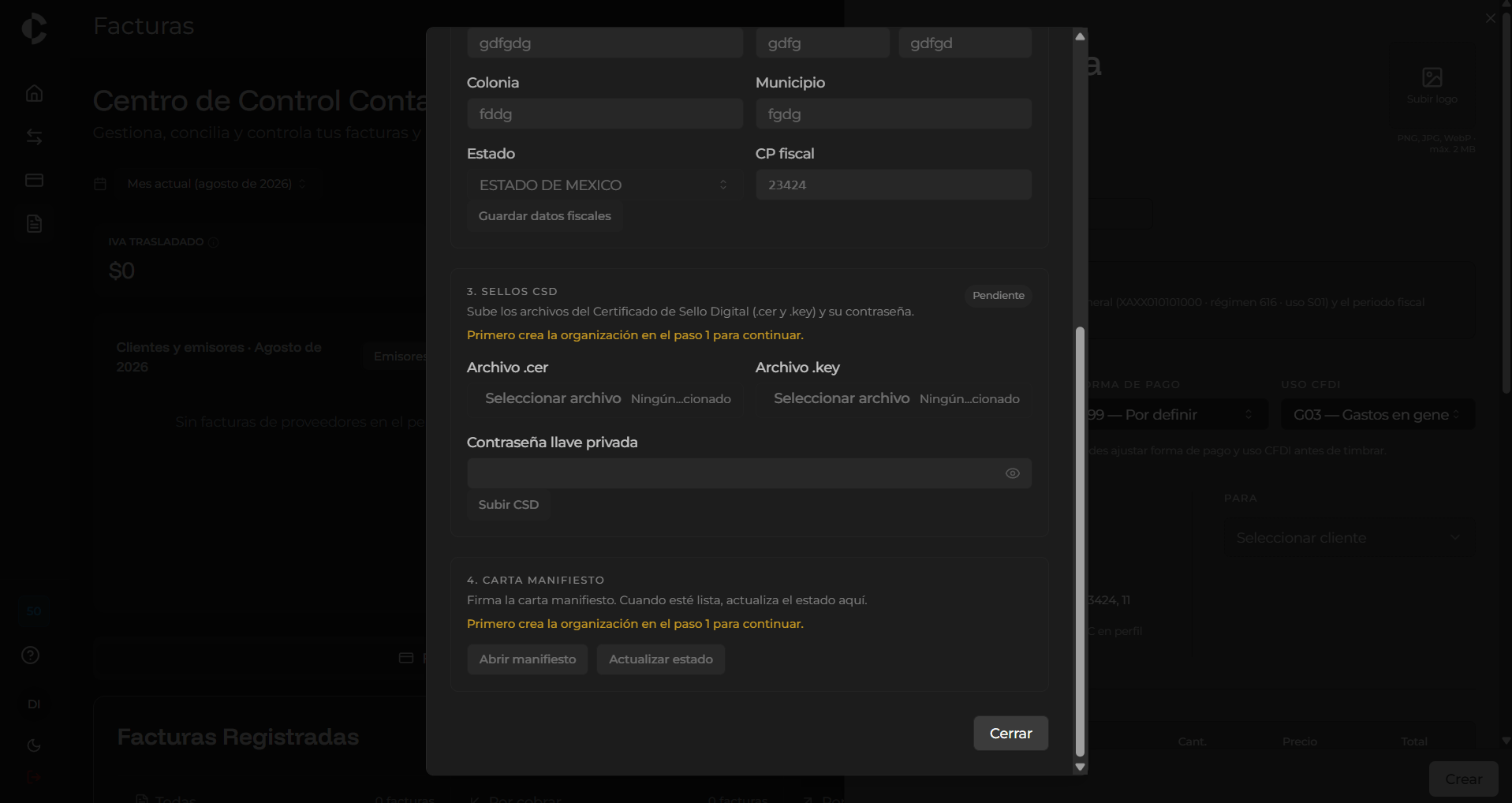
3. **CSD Stamps**: Upload the Digital Seal Certificate files:
* `.cer` file
* `.key` file
* Private key password
4. **Manifesto Letter**: Digitally sign the manifesto letter to authorize the issuance of receipts before the SAT.
### SAT Stamping Activation
If this is the first time you are generating a receipt or if your account has not completed tax registration, the system will display the **"SAT Stamping pending"** notification. Selecting the **"Activate stamping"** option will open a window where you must complete four stages:
1. **Organization**: Create and link the stamping organization with the registered legal entity using the **"Create organization"** button.
2. **Tax Details**: Enter or edit the issuer's tax information:
* Commercial name and SAT Business name.
* Tax regime and support email.
* Full address (Street, Ext. No., Int. No., Neighborhood/Colonia, Municipality, State, and Tax ZIP Code).
3. **CSD Stamps**: Upload the Digital Seal Certificate files:
* `.cer` file
* `.key` file
* Private key password
4. **Manifesto Letter**: Digitally sign the manifesto letter to authorize the issuance of receipts before the SAT.
 ***
### New Invoice Form
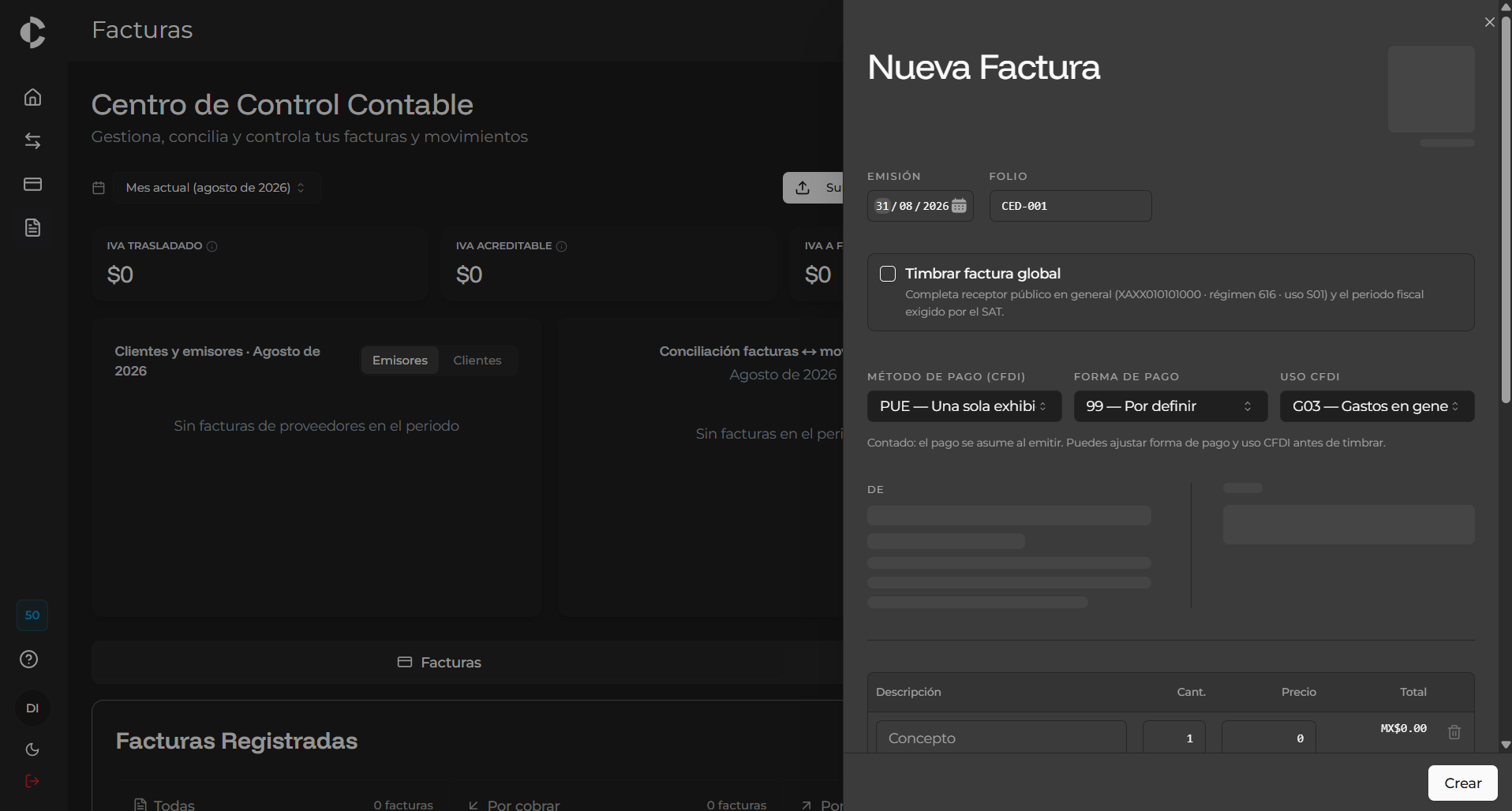
Once stamping is active, the system will enable the **"New Invoice"** form. In this section, you must enter the general transaction details:
* **Issuance details**: Date of issuance and assigned folio (e.g., `CED-001`).
* **Stamp global invoice**: Selectable option for sales operations to the general public (generic RFC `XAXX010101000`, regime 616).
* **Tax attributes (CFDI)**:
* **Payment method**: Selection of the applicable scheme (e.g., `PUE — Single payment`).
* **Payment form**: Selection of the corresponding code (e.g., `99 — To be defined`).
* **CFDI Use**: Tax destination of the receipt (e.g., `G03 — General expenses`).
* **Recipient Details**: Selection of the registered customer to whom the invoice will be issued.
##
***
### New Invoice Form
Once stamping is active, the system will enable the **"New Invoice"** form. In this section, you must enter the general transaction details:
* **Issuance details**: Date of issuance and assigned folio (e.g., `CED-001`).
* **Stamp global invoice**: Selectable option for sales operations to the general public (generic RFC `XAXX010101000`, regime 616).
* **Tax attributes (CFDI)**:
* **Payment method**: Selection of the applicable scheme (e.g., `PUE — Single payment`).
* **Payment form**: Selection of the corresponding code (e.g., `99 — To be defined`).
* **CFDI Use**: Tax destination of the receipt (e.g., `G03 — General expenses`).
* **Recipient Details**: Selection of the registered customer to whom the invoice will be issued.
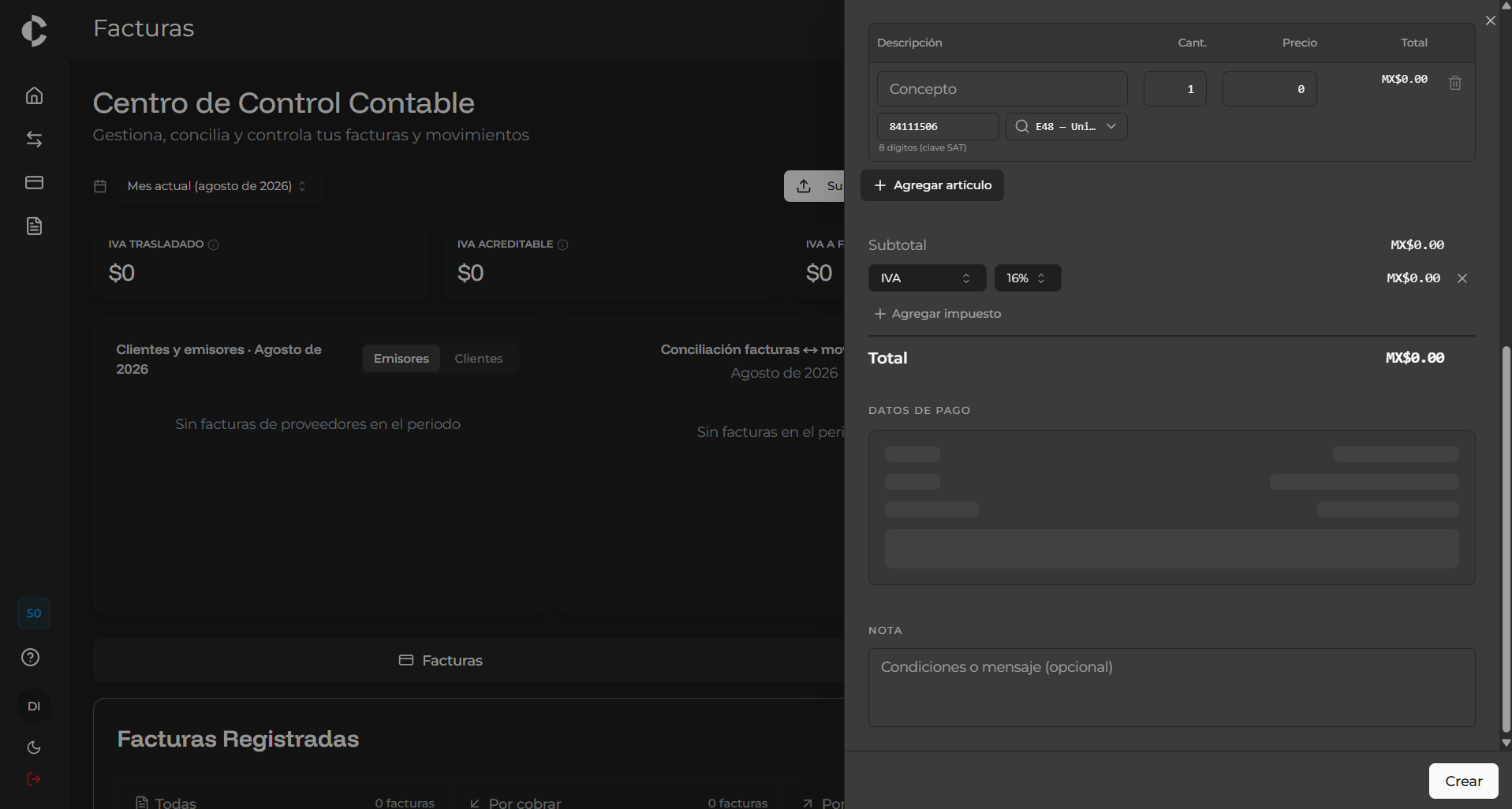
##  ### Line Items, Taxes, and Confirmation
In the bottom section of the form, you must detail the line items and taxes associated with the invoice:
1. **Item details**:
* **Description**: Text description of the item or product.
* **Quantity, Price, and Total**: Numerical data for the item.
* **SAT Code**: 8-digit identifier corresponding to the tax catalog (e.g., `84111506`).
* **Unit of measure**: Selection of the applicable code (e.g., `E48 — Service unit`).
2. **Taxes**: Configuration of applicable rates and taxes (e.g., VAT 16%) or addition of extra taxes via **"Add tax"**.
3. **Payment Terms and Notes**: Optional field to enter commercial terms or informational messages for the client.
Once the information has been reviewed, select the **"Create"** option to officially issue and stamp the tax receipt.
##
### Line Items, Taxes, and Confirmation
In the bottom section of the form, you must detail the line items and taxes associated with the invoice:
1. **Item details**:
* **Description**: Text description of the item or product.
* **Quantity, Price, and Total**: Numerical data for the item.
* **SAT Code**: 8-digit identifier corresponding to the tax catalog (e.g., `84111506`).
* **Unit of measure**: Selection of the applicable code (e.g., `E48 — Service unit`).
2. **Taxes**: Configuration of applicable rates and taxes (e.g., VAT 16%) or addition of extra taxes via **"Add tax"**.
3. **Payment Terms and Notes**: Optional field to enter commercial terms or informational messages for the client.
Once the information has been reviewed, select the **"Create"** option to officially issue and stamp the tax receipt.
##  This documentation is built and hosted on [Mintlify](https://mintlify.com), a developer documentation platform.