> ## Documentation Index
> Fetch the complete documentation index at: https://docs.soycedi.com/llms.txt
> Use this file to discover all available pages before exploring further.
# International Transfers
To perform an international transfer, you must access the **"Transfers"** module from the system side menu and select the **"International transfer"** option.
The system displays the **"International transfer"** screen, where the available accounts to perform the operation are presented. You must select the account from which you wish to send the funds.
***
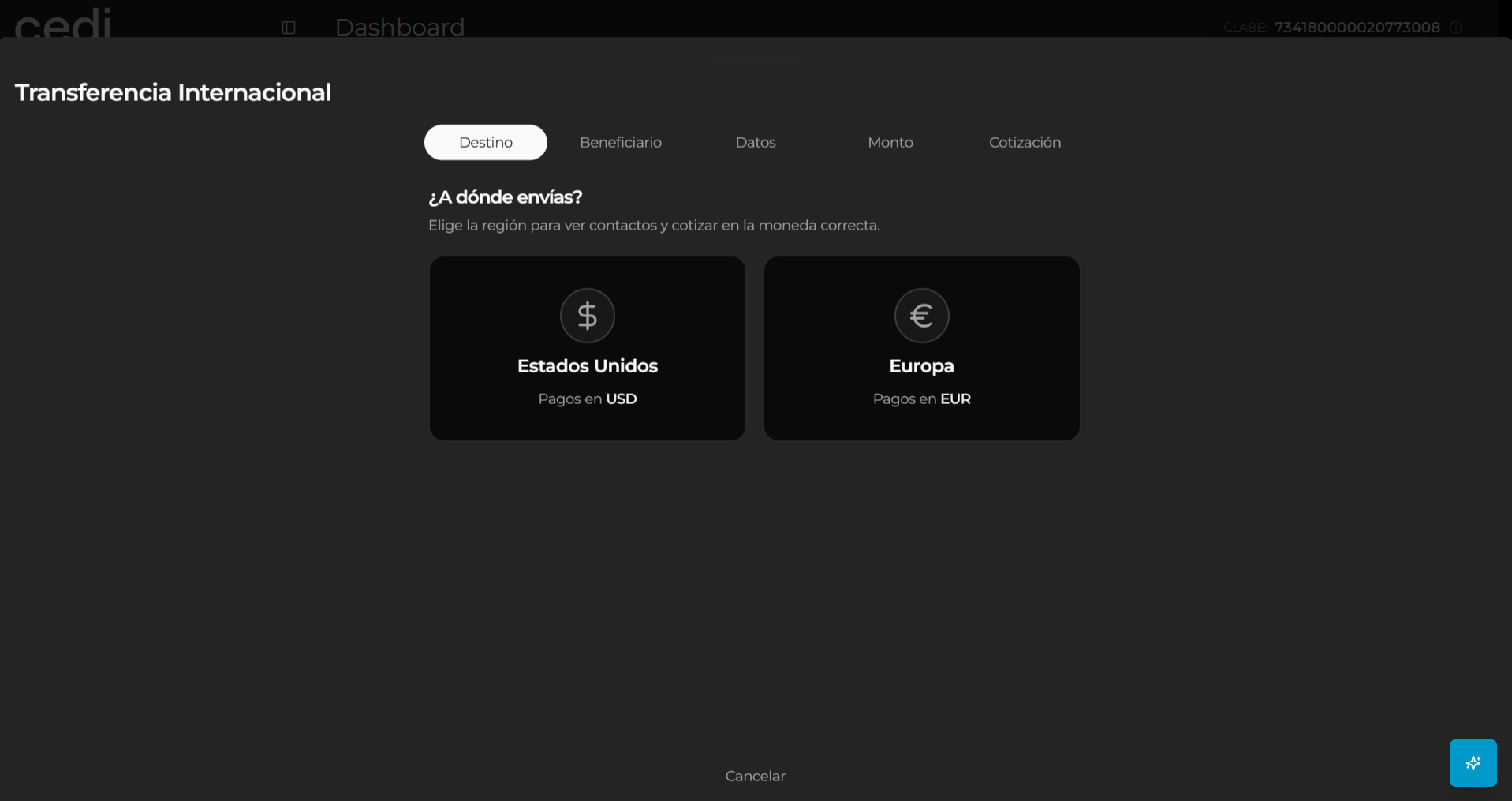
### Source account selection
At this stage, the system displays the available accounts to perform the international transfer, allowing you to identify the origin of the funds.
You must select the corresponding account and continue with the process.
Once the account has been selected, the system enables the recipient information capture flow.
 ***
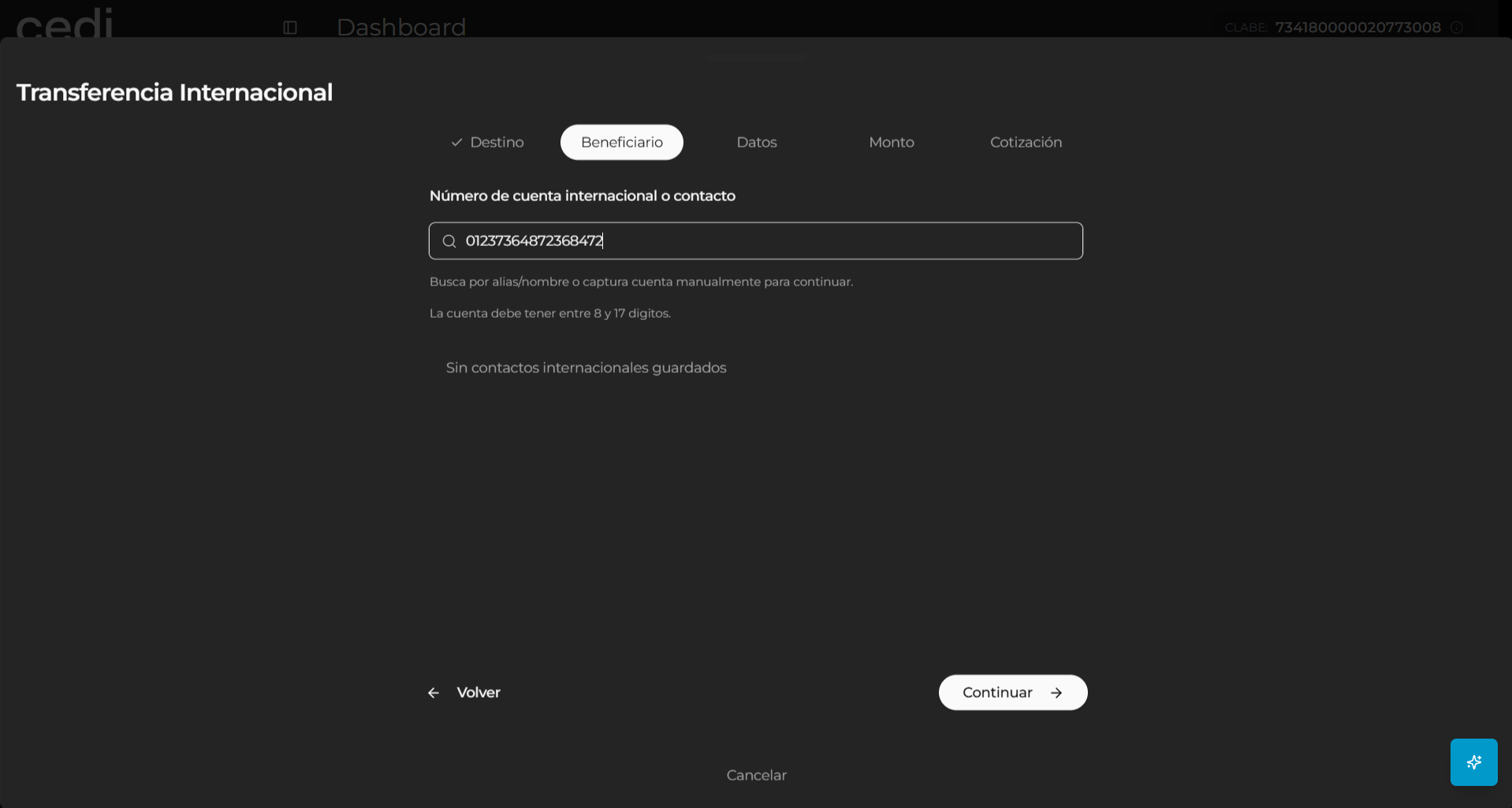
### Recipient information
The system displays the **"Recipient information"** form, where you must enter the data of the person or company that will receive the transfer.
In this section, you must capture the following information:
* Recipient name
* Account number
* Bank name
* Recipient address
* City
* State
* Postal code
* Country
Additionally, the system may request complementary information depending on the type of transfer or the destination country.
Once the information has been completed, you must select the **"Continue"** option to proceed to the next step.
***
### Recipient information
The system displays the **"Recipient information"** form, where you must enter the data of the person or company that will receive the transfer.
In this section, you must capture the following information:
* Recipient name
* Account number
* Bank name
* Recipient address
* City
* State
* Postal code
* Country
Additionally, the system may request complementary information depending on the type of transfer or the destination country.
Once the information has been completed, you must select the **"Continue"** option to proceed to the next step.
 ***
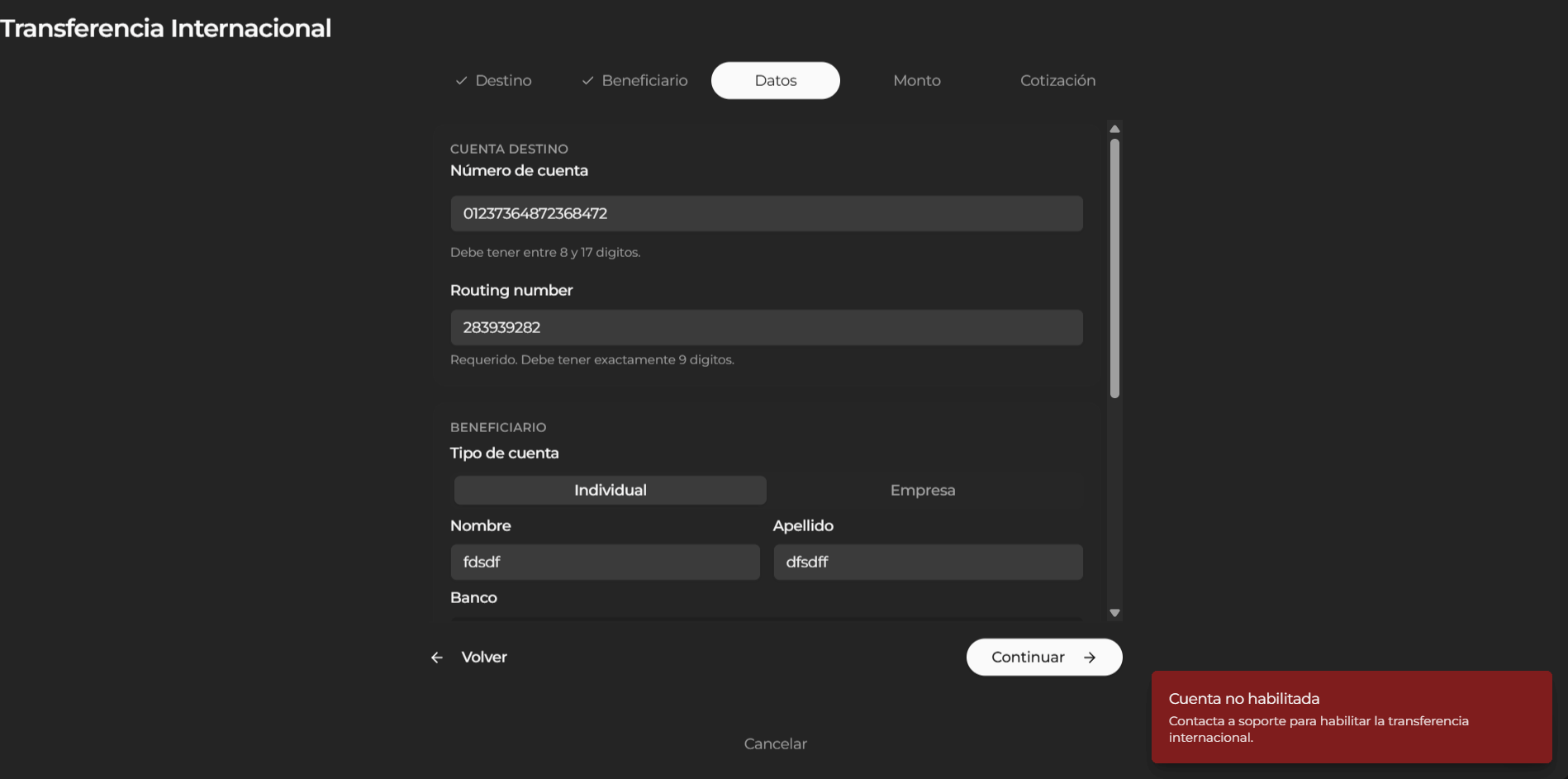
### Enabled account validation
During the process, the system validates that the selected account is enabled to perform international transfers.
If the account is not enabled, the system displays an informational message indicating that the account does not have permissions to perform this type of operations.
In this case, you must:
* Verify the status of your account
* Request the corresponding enablement
* Select another available account
Once the account is enabled, you will be able to continue with the process normally.
***
### Enabled account validation
During the process, the system validates that the selected account is enabled to perform international transfers.
If the account is not enabled, the system displays an informational message indicating that the account does not have permissions to perform this type of operations.
In this case, you must:
* Verify the status of your account
* Request the corresponding enablement
* Select another available account
Once the account is enabled, you will be able to continue with the process normally.
 ***
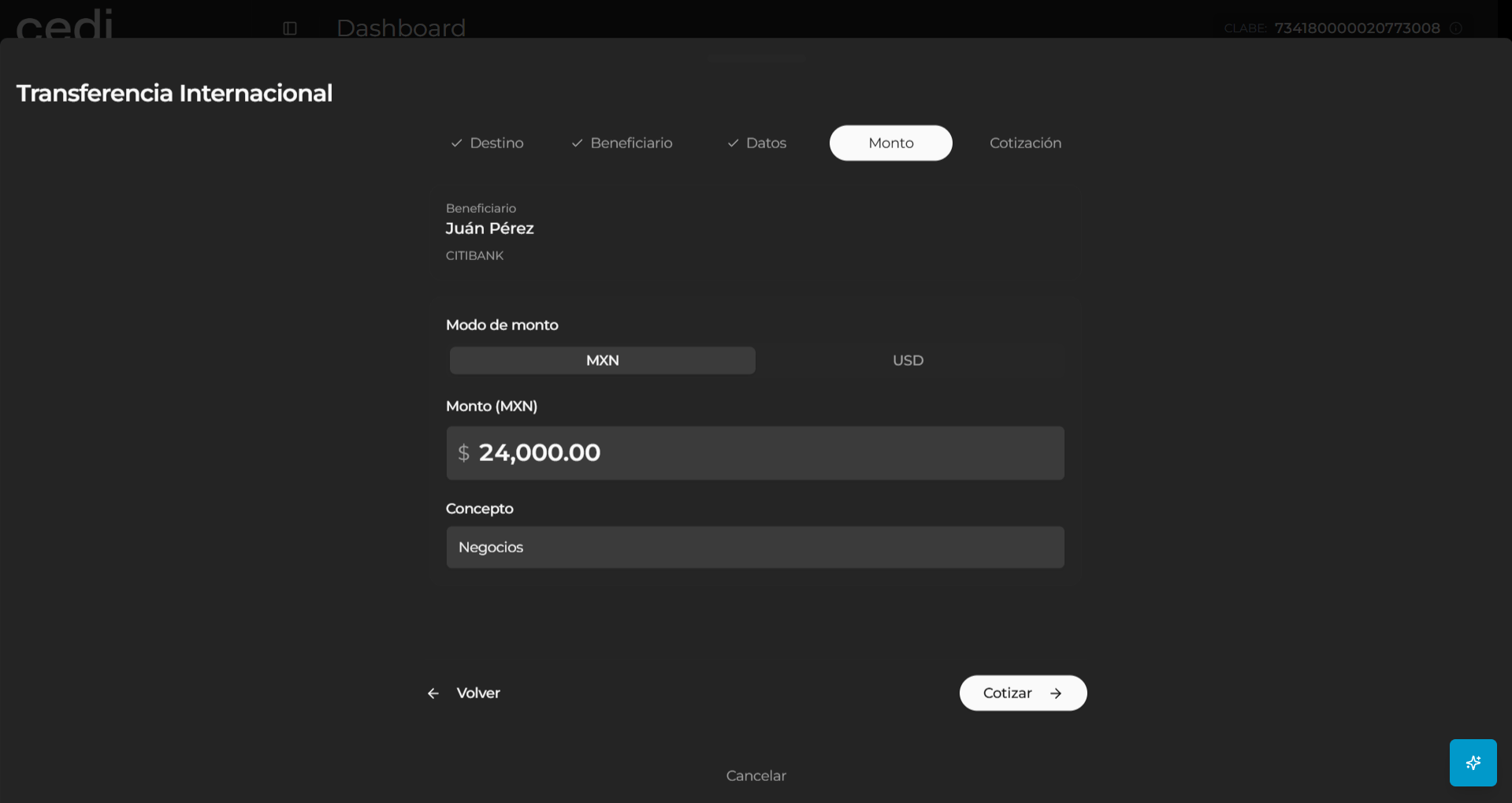
### Transfer amount and concept
At this stage, the system displays the **"Amount"** form, where you must enter the financial information of the operation.
The requested data includes:
* Transfer currency
* Amount to send
* Payment concept
The system validates the entered data and automatically calculates the corresponding values for the operation.
Once the information has been captured, you must select the **"Continue"** option.
***
### Transfer amount and concept
At this stage, the system displays the **"Amount"** form, where you must enter the financial information of the operation.
The requested data includes:
* Transfer currency
* Amount to send
* Payment concept
The system validates the entered data and automatically calculates the corresponding values for the operation.
Once the information has been captured, you must select the **"Continue"** option.
 ***
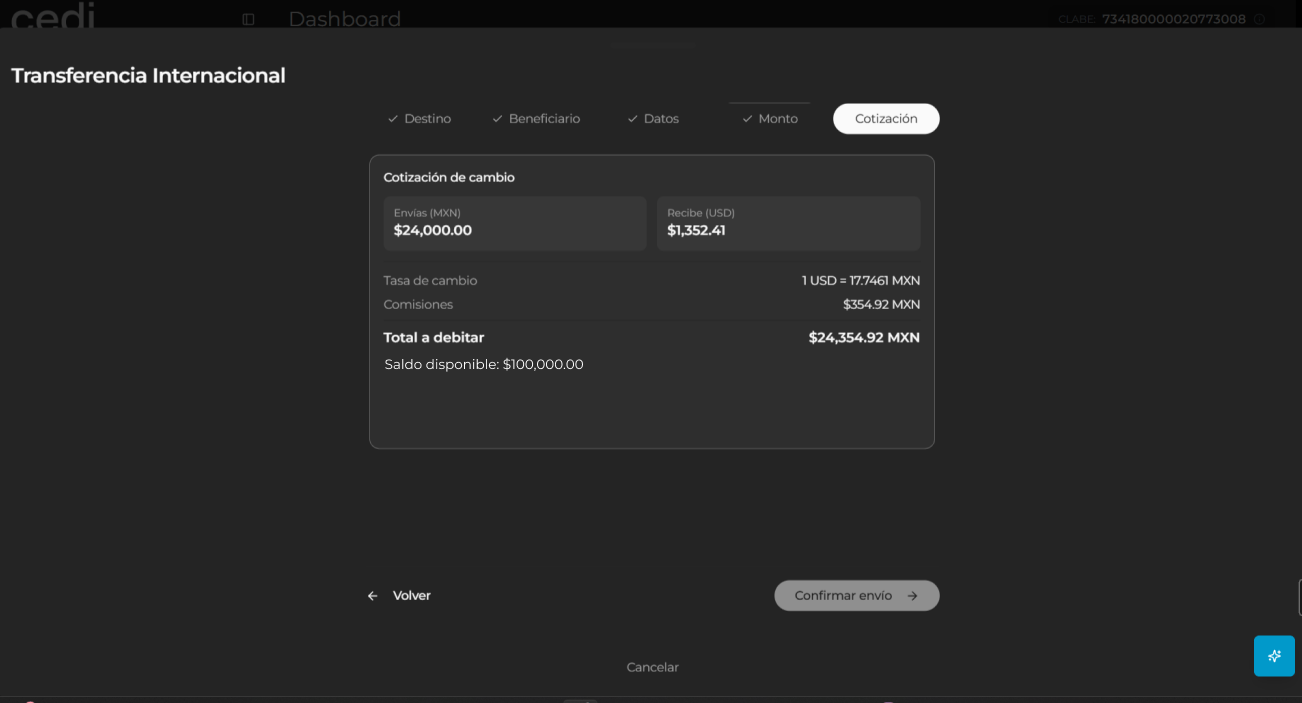
### Transfer quotation
Subsequently, the system displays the **"Quotation"** window, where the financial summary of the operation is presented before its confirmation.
On this screen, the system displays:
* Amount sent
* Source currency
* Destination currency
* Applied exchange rate
* Operation fee
* Total to be debited
* Intermediary bank information
You must carefully review the displayed information before confirming the operation.
***
### Transfer quotation
Subsequently, the system displays the **"Quotation"** window, where the financial summary of the operation is presented before its confirmation.
On this screen, the system displays:
* Amount sent
* Source currency
* Destination currency
* Applied exchange rate
* Operation fee
* Total to be debited
* Intermediary bank information
You must carefully review the displayed information before confirming the operation.
 ***
### Transfer confirmation
Once the information has been validated, you can select the **"Confirm"** option to finalize the process.
The system processes the international transfer and, upon completion, performs the following actions:
* Confirms that the transfer was successfully completed
* Updates the available balance
* Records the movement in the transaction history
* Allows you to review the operation details at any time
***
This documentation is built and hosted on [Mintlify](https://mintlify.com), a developer documentation platform.
***
### Transfer confirmation
Once the information has been validated, you can select the **"Confirm"** option to finalize the process.
The system processes the international transfer and, upon completion, performs the following actions:
* Confirms that the transfer was successfully completed
* Updates the available balance
* Records the movement in the transaction history
* Allows you to review the operation details at any time
***
This documentation is built and hosted on [Mintlify](https://mintlify.com), a developer documentation platform.